Moving off the legacy names
Upgrade every controller, then migrate old boxes.
How you got here: Desktop app What a box needs 1. Create the controller key 2. Pair a box One server for everything How a job behaves Who drives Commands node.migrate-names The controller The agent on a box
Show previous steps 11
Install 1
- Desktop app
Download the desktop app for your OS and open it.
The macOS zip holds Jumpgate.app and Jumpgate Terminal.app; Windows has jumpgate-tray.exe and jumpgate.exe; Linux has install.sh. Every download carries both Linux agents.
Show image
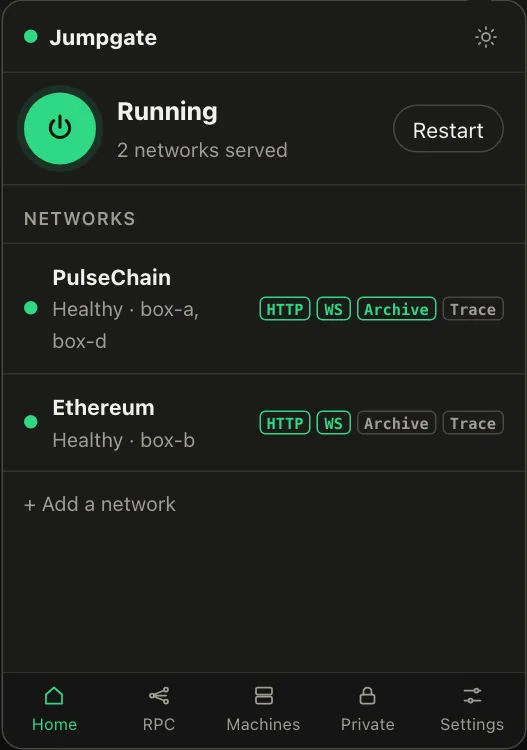
Illustration from the jumpgate.app demo, with made-up boxes; not a screenshot of the app.
Getting started 4
- What a box needs
A Debian or Ubuntu box with systemd, reachable as root over SSH.
Setup needs root (or passwordless sudo with --sudo) and checks Linux, systemd and disk first. The node itself runs as an unprivileged account.
- 1. Create the controller key
Create the key that signs every command to your boxes.
jumpgate keys init stores it in the Keychain, Credential Manager, Secret Service, 1Password or an owner-only file. It never leaves your computer.
Show image
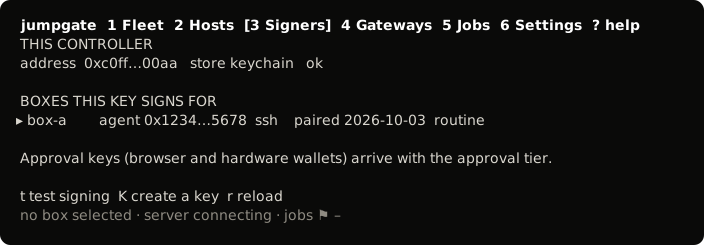
The TUI, from its test snapshot; empty rows removed. - 2. Pair a box
Install the agent on a box and confirm its host key.
You confirmed the box's fingerprint, and jumpgate installed jumpgate-agent.service and a restricted tunnel user. The box now takes only signed commands.
Show image
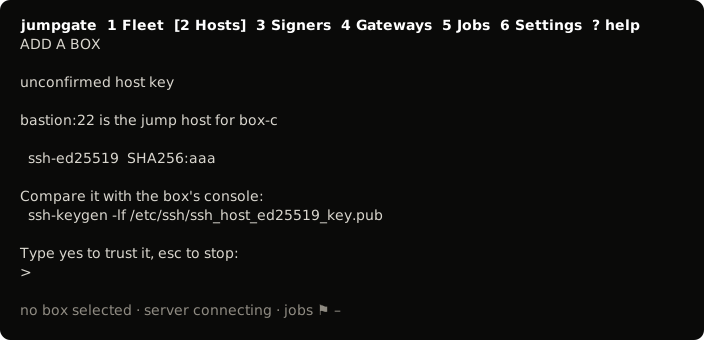
The TUI, from its test snapshot; empty rows removed. - One server for everything
The app, TUI and CLI share one background server.
Whichever starts first runs the server; quitting the TUI leaves it running and jumpgate stop ends it.
Durable jobs 4
- How a job behaves
A job runs fixed steps on the box and asks when it must.
Each step runs as a transient systemd unit, so a running step outlives the TUI; the agent keeps a signed log, and the box refuses service actions until the job ends.
Show image
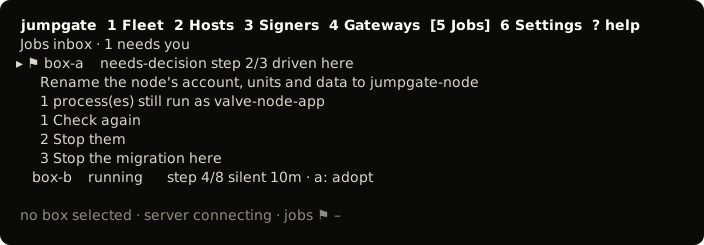
The TUI, from its test snapshot; empty rows removed. - Who drives
One controller holds a job's lease; the others watch.
A lease silent for 90 seconds is stale, and adopting it is your decision.
- Commands
List, show, decide and adopt jobs from the CLI.
jumpgate jobs lists them; jobs decide answers a question and jobs adopt takes over a stale lease. In the TUI, press 5.
- node.migrate-names
Move an old install from valve-node-app to jumpgate-node.
jumpgate migrate-names HOST --yes renames the account, units and data root, and asks only where it cannot choose safely.
Upgrading 2
- The controller
Replace the app, then restart the old server.
Commands warn when the running server is another version; jumpgate stop replaces it, and the TUI offers R.
- The agent on a box
Upgrade a box's agent by pairing it again.
jumpgate hosts add on an existing name re-pairs the address on record; a different address is refused.
New setups use the jumpgate-node account from the start. Older boxes still on valve-node-app move with the node.migrate-names job.
- Upgrade every controller that manages a box before you migrate it. A controller from before the migration does not know about it; running setup from it afterwards would set the box up under the legacy names again.
- Then run
jumpgate migrate-names HOST --yes, or:migrate-names NAMEin the TUI. The node stops while the job runs.