The controller
Replace the app, then restart the old server.
How you got here: Desktop app One server for everything
Show previous steps 2
Install 1
- Desktop app
Download the desktop app for your OS and open it.
The macOS zip holds Jumpgate.app and Jumpgate Terminal.app; Windows has jumpgate-tray.exe and jumpgate.exe; Linux has install.sh. Every download carries both Linux agents.
Show image
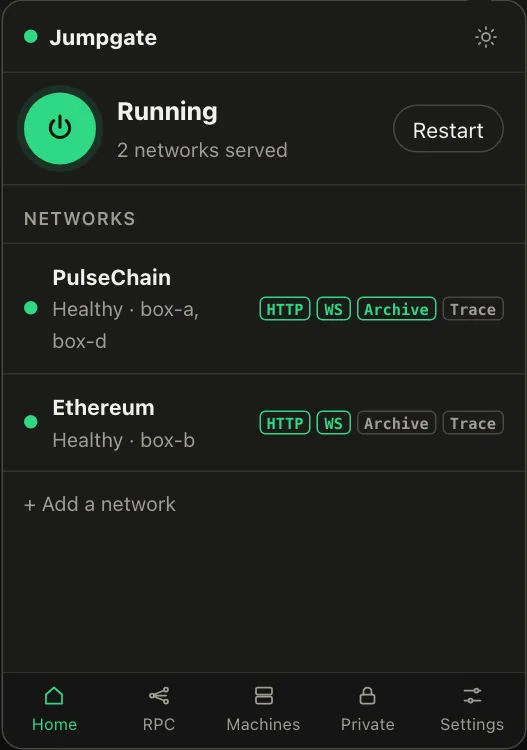
Illustration from the jumpgate.app demo, with made-up boxes; not a screenshot of the app.
Getting started 1
- One server for everything
The app, TUI and CLI share one background server.
Whichever starts first runs the server; quitting the TUI leaves it running and jumpgate stop ends it.
Download the new release and replace the app or the binary. The background server from the old version may still be running: commands warn you when the server is a different jumpgate version. Run jumpgate stop to replace it; the next command or app launch starts the new one. When the versions differ, the TUI also offers R to restart the server.
If the app finds a server already running with different options, it prints which options are not in effect. Run jumpgate stop and launch again to apply them.