Exit codes
What each exit code means.
How you got here: Desktop app What a box needs 1. Create the controller key 2. Pair a box
Show previous steps 4
Install 1
- Desktop app
Download the desktop app for your OS and open it.
The macOS zip holds Jumpgate.app and Jumpgate Terminal.app; Windows has jumpgate-tray.exe and jumpgate.exe; Linux has install.sh. Every download carries both Linux agents.
Show image
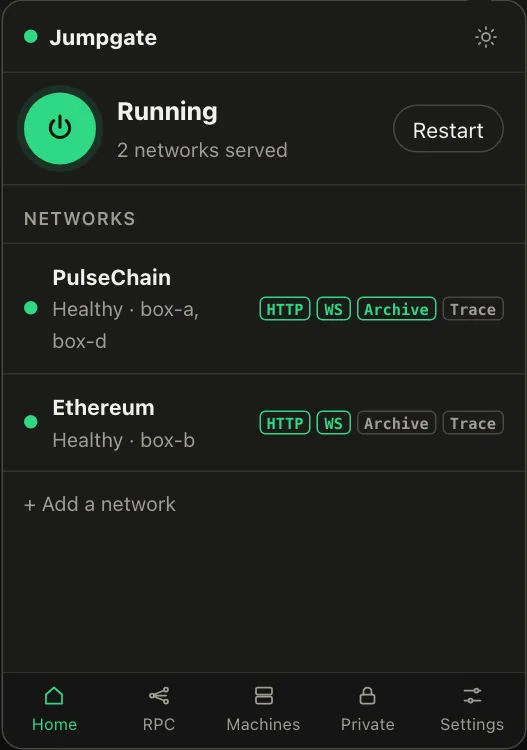
Illustration from the jumpgate.app demo, with made-up boxes; not a screenshot of the app.
Getting started 3
- What a box needs
A Debian or Ubuntu box with systemd, reachable as root over SSH.
Setup needs root (or passwordless sudo with --sudo) and checks Linux, systemd and disk first. The node itself runs as an unprivileged account.
- 1. Create the controller key
Create the key that signs every command to your boxes.
jumpgate keys init stores it in the Keychain, Credential Manager, Secret Service, 1Password or an owner-only file. It never leaves your computer.
Show image
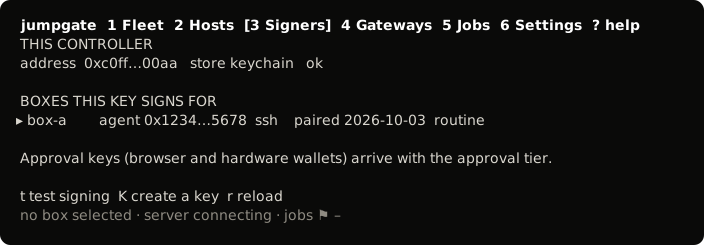
The TUI, from its test snapshot; empty rows removed. - 2. Pair a box
Install the agent on a box and confirm its host key.
You confirmed the box's fingerprint, and jumpgate installed jumpgate-agent.service and a restricted tunnel user. The box now takes only signed commands.
Show image
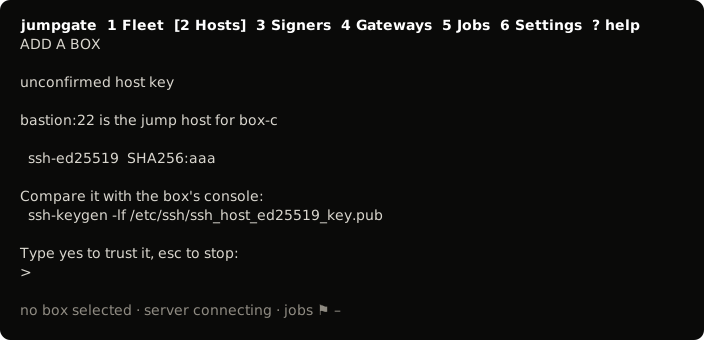
The TUI, from its test snapshot; empty rows removed.
0: success.1: the operation failed or was refused.2: bad usage, or a missing prerequisite, such as no controller key yet or a box that is not paired.3: the box is unreachable.4: a security failure: a host key nobody confirmed, a host key that changed since it was confirmed, a confirmed fingerprint that is not the key the box presented, a reply not signed by the paired agent, or a controller key that is not the one on record.