Opening the web app
Sign a browser in to the local web app.
How you got here: Desktop app One server for everything
Show previous steps 2
Install 1
- Desktop app
Download the desktop app for your OS and open it.
The macOS zip holds Jumpgate.app and Jumpgate Terminal.app; Windows has jumpgate-tray.exe and jumpgate.exe; Linux has install.sh. Every download carries both Linux agents.
Show image
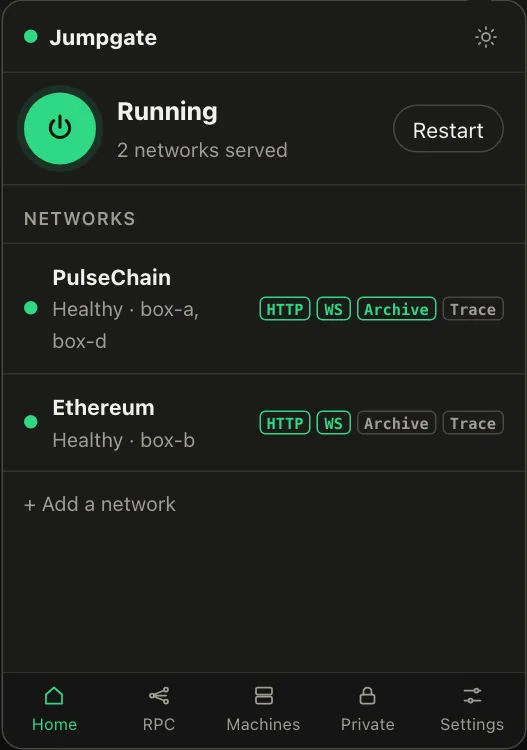
Illustration from the jumpgate.app demo, with made-up boxes; not a screenshot of the app.
Getting started 1
- One server for everything
The app, TUI and CLI share one background server.
Whichever starts first runs the server; quitting the TUI leaves it running and jumpgate stop ends it.
jumpgate open starts the server if needed and signs your browser in with a one-time login link. The link works once, within 60 seconds, and only over a loopback connection: a browser on this computer, or one reaching it through an SSH tunnel. jumpgate open --print prints the link instead of opening a browser.
To use jumpgate from another machine, keep the default bind and tunnel to it, for example ssh -L 8799:127.0.0.1:8799 you@host. Then run jumpgate open --print on the host and open the printed link on your machine.